How does the reply form work, and what can I change?
Guests reply on the invitation itself. The form is open on the page, with I’ll be there already chosen for a new reply. You can move it, put it behind a button, hide the phone or message field and word its heading and answers your way.
What guests see
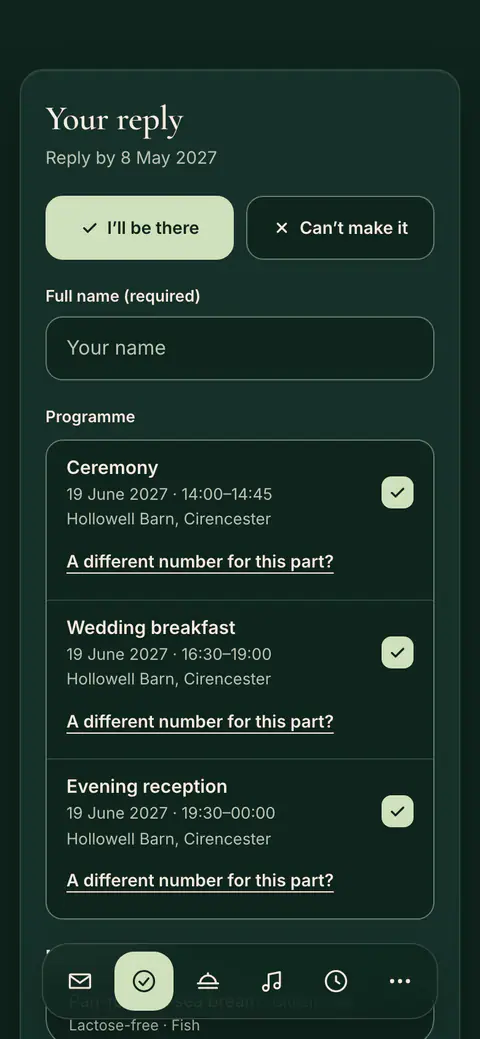
- Two answers: I’ll be there and Can’t make it. For a new reply, I’ll be there is already chosen.
- Their name, how many people are coming, and the questions your event uses: a meal choice, your own questions and, when your menu has dishes, allergies or dietary needs.
- Notes from your RSVP settings where they apply, such as the reply-by date, an adults-only event or the places left.
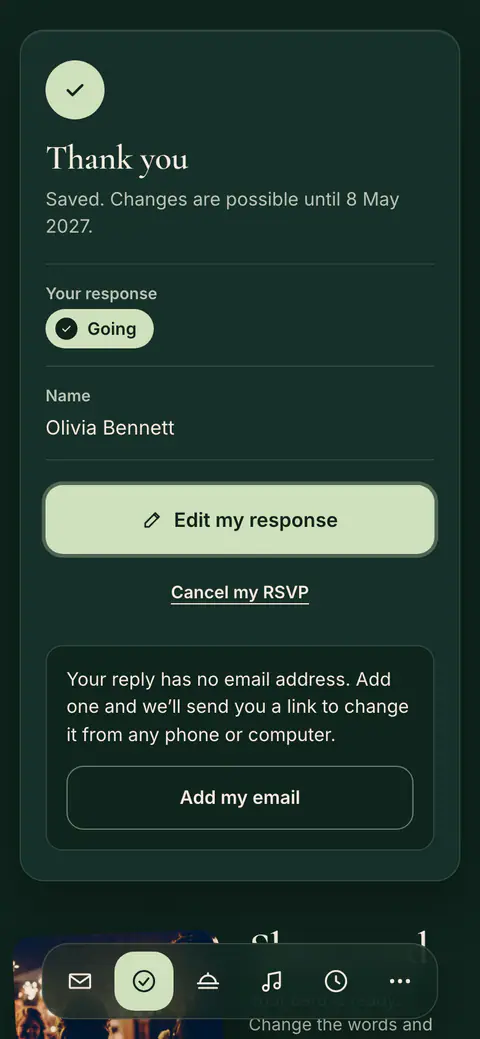
- Send reply sends the reply. Guests then see a thank-you and can change their reply later.
What the form asks is set in RSVP settings. See Set a reply-by date and How many people one reply covers.
What you can change
In Customise design, select Reply:
- Place on the page: Move up and Move down move it between your sections. At first it comes right after the cover and the description.
- How the form shows: turn off Show the form open on the page to show two buttons instead, Reply to the invitation and I can’t come. Either opens the form.
- Fields of the form: Show the phone field and Show the message field.
- Customise the reply texts: the heading, the two answers and the thank-you in your own words. See Which texts can I change?
- Open RSVP settings: party size, meals, your questions, the reply-by date and who may reply.
Then press Save. With Pages, the reply stays on the invitation’s first page.
Frequently asked questions
Why is “I’ll be there” already chosen?
Most guests reply to say they are coming, so a new reply starts with I’ll be there chosen. Guests who cannot come choose Can’t make it. A guest changing an earlier reply sees their own answer.
Was this article helpful?
Related articles
Still need help?
Our support team is here for you.
Chat with us
Ask your question in the chat. A person from our team replies within one business day.
Email us
Write to us from your account’s email address and add a screenshot if you can.
support@vowly.co