How do I change the design of my invitation?
Open Invitation. The card at the top shows your invitation with three choices beside it: Layout, Cover and Style. Pick one, press Apply, and the change is saved. Everything else about the design is in Customise design.
On this page
The design card on the Invitation page
- Choose your event and open Invitation in the menu on the left.
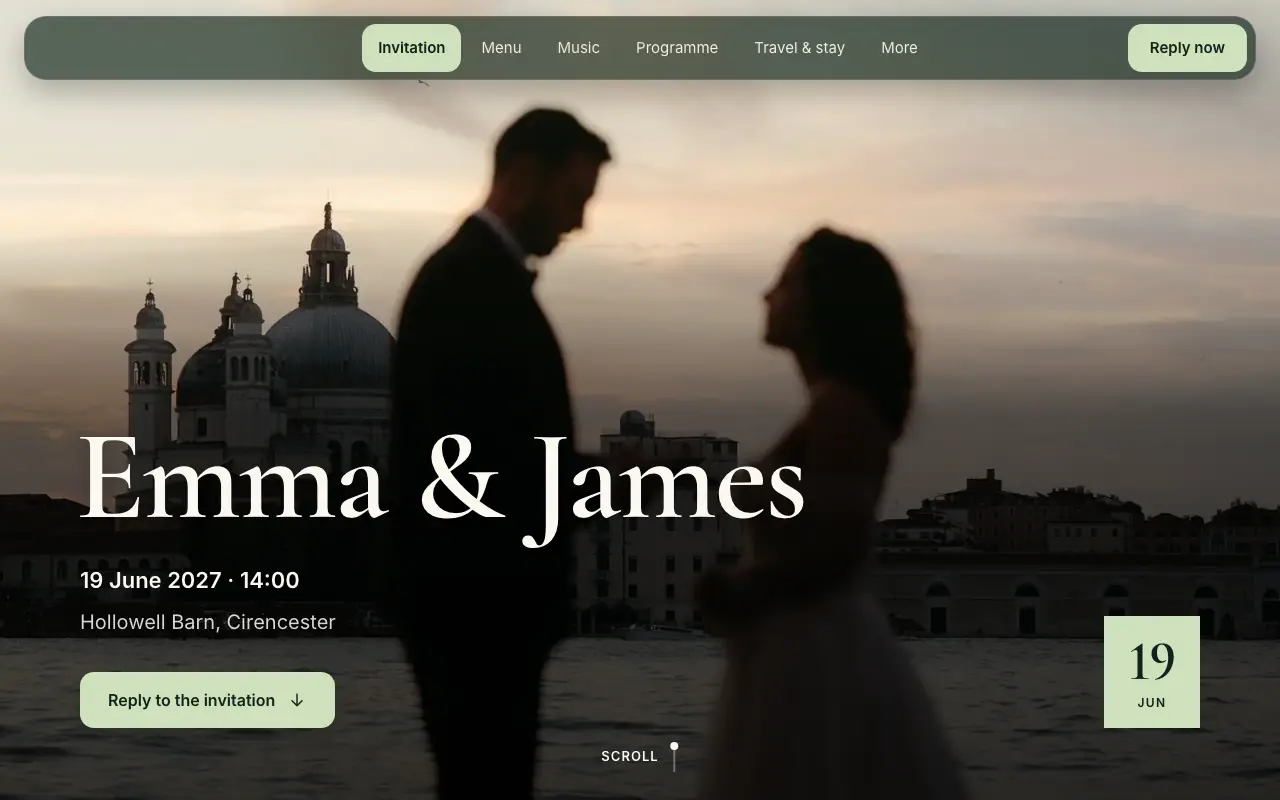
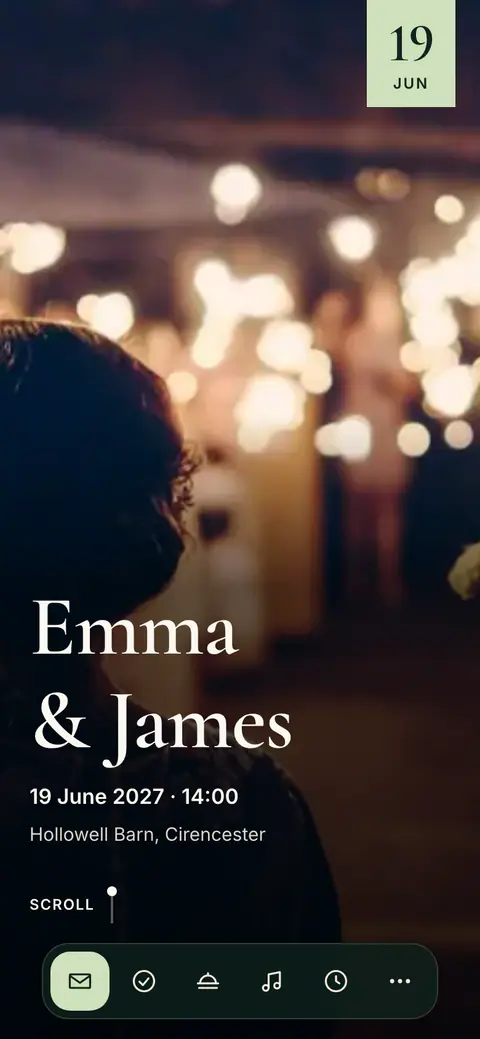
- The card at the top shows your invitation on a phone and on a computer. Beside it, Layout, Cover and Style each say what is chosen now.
- Choose one of the three. A window opens with your own invitation and the choices under it.
- Pick what you like. The invitation in the window changes as you pick.
- Press Apply.
- Open your event and go to the Invitation tab.
- The card at the top shows your invitation, with Layout, Cover, Style and Customise further beside it.
- Tap one of the first three. A screen opens with your own invitation at the top and the choices under it.
- Pick what you like. The invitation at the top changes as you pick.
- Tap Apply.
Invitation
Share invitation
Invitation
In the phone app, this card comes with the latest version of the app. If your app does not show it yet, update the app or use web.vowly.co.
What happens when you press Apply
- Your invitation is published: the change is saved and guests see it straight away. Vowly says Saved. Your guests now see the new design.
- Your invitation is not published yet: the change is saved, and guests see it once you publish your invitation. Vowly says Saved. Your guests see it once you publish your invitation.
- Your link, your QR code, your guests and their replies stay as they are.
A cover photo you upload, and its framing, are saved as soon as you choose them. You do not need Apply for those.
Changed your mind?
If you picked something and close the window without Apply, Vowly asks Discard your changes?
- Discard the changes: nothing you picked is kept. Your invitation stays as it was.
- Keep editing: you stay in the window and can still press Apply.
Everything else about the design
Customise design (on the phone, Customise further) opens the design editor. There you can also change the date style, show the countdown, hide parts of the page, move the reply, choose how each section looks and who sees it, and word the reply in your own way. See How do I use Customise design?
The content of your sections, such as the programme, the menu or the questions and answers, is written on the Guest experience page. Your names, description, place, date and time are in Event settings.
Invitations with a theme
An invitation made with a theme, before the new designs, keeps its theme and looks exactly as before. Its Invitation page offers Move to the new designs. See How do I move an older invitation to the new designs?
Frequently asked questions
Does it cost anything to change the design?
No. Every layout, cover, style set and colour is free to choose and to preview. Guests can open your invitation once it is published, with the free trial or Premium.
Do I have to publish again after changing the design?
No. Once your invitation is published, Apply in the card, or Save in Customise design, is enough: guests see the change straight away.
Can I try the designs before I create an event?
Yes. The live demo on vowly.co shows a real invitation for every type of event, in every layout, cover and style set, on a phone and on a computer. Nothing you try there is sent or saved.
Was this article helpful?
Related articles
Still need help?
Our support team is here for you.
Chat with us
Ask your question in the chat. A person from our team replies within one business day.
Email us
Write to us from your account’s email address and add a screenshot if you can.
support@vowly.co