What do guests see after they reply?
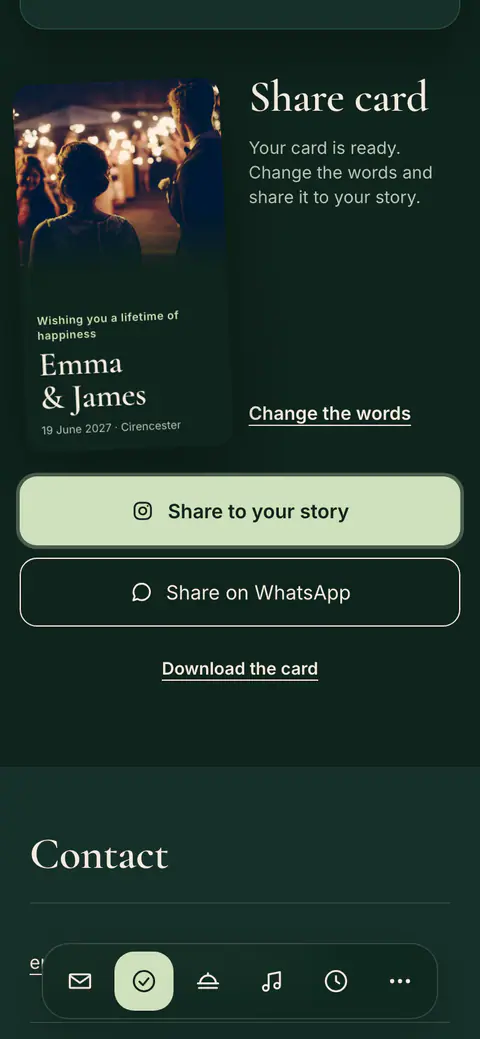
After replying, guests see a thank-you with their reply. They can change or cancel it, and add your event to their calendar. A guest who is coming can also share a small card in your design. You can turn the card off.
On this page
The thank-you
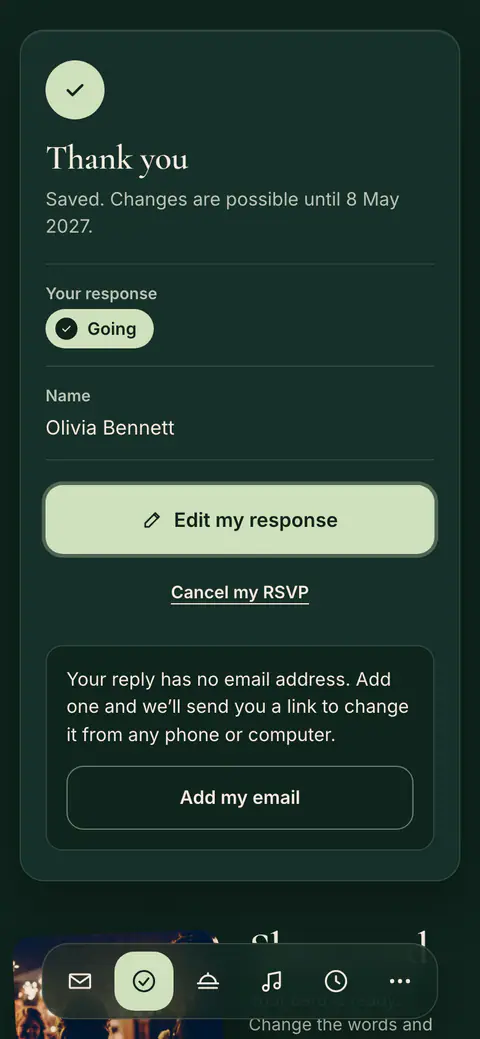
- A thank-you with a short summary of the reply. Its heading and the line under it can be your own words.
- Edit my response: guests change their reply.
- Add to calendar: the day goes into their calendar.
- Cancel my RSVP: guests take their reply back.
The share card
A guest who is coming can share a small card with your names and the date, in your design: Share to your story, Share on WhatsApp or Download the card. With Change the words they pick ready-made words or write their own. Their own words are written onto the card on their phone and are never sent to Vowly.
- Open Invitation and choose Layout in the design card.
- Under Extras, turn Share card after a reply off or on.
- Press Apply.
- Go to the Invitation tab and tap Layout in the design card.
- Under Extras, turn Share card after a reply off or on.
- Tap Apply.
The Vowly card
Unless the event’s owner has a yearly subscription, guests also see a small card after replying, Like this invitation?, with a button to create their own invitation in the same design. It opens in a new tab and does not change the guest’s reply. The words Created with Vowly Event at the end of the page follow the same rule.
Was this article helpful?
Related articles
Still need help?
Our support team is here for you.
Chat with us
Ask your question in the chat. A person from our team replies within one business day.
Email us
Write to us from your account’s email address and add a screenshot if you can.
support@vowly.co