How do I change the cover, my photo or the date style?
The cover is the first thing guests see. You choose its shape, your own photo or one of Vowly’s, or no photo at all, and you can frame your photo so your faces always stay in view. The date style is chosen in the design editor.
On this page
Cover shapes
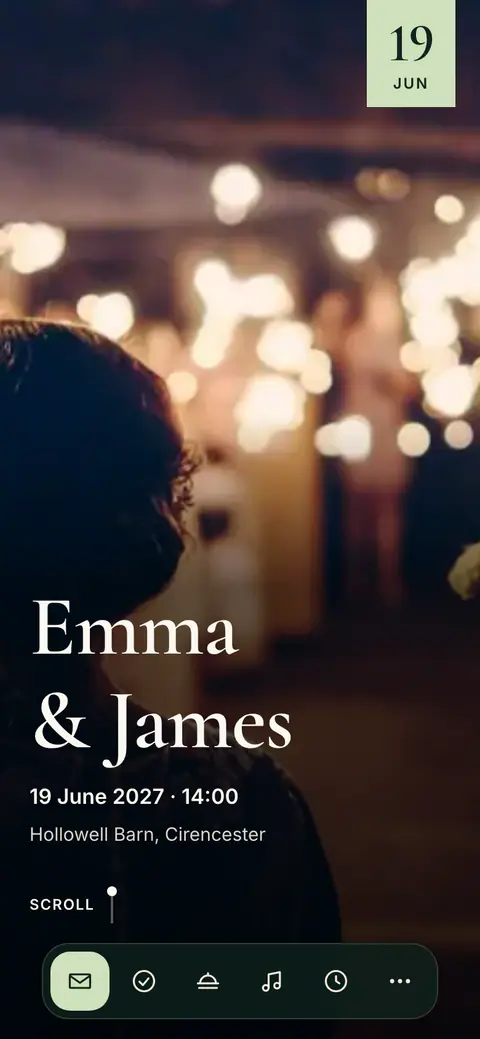
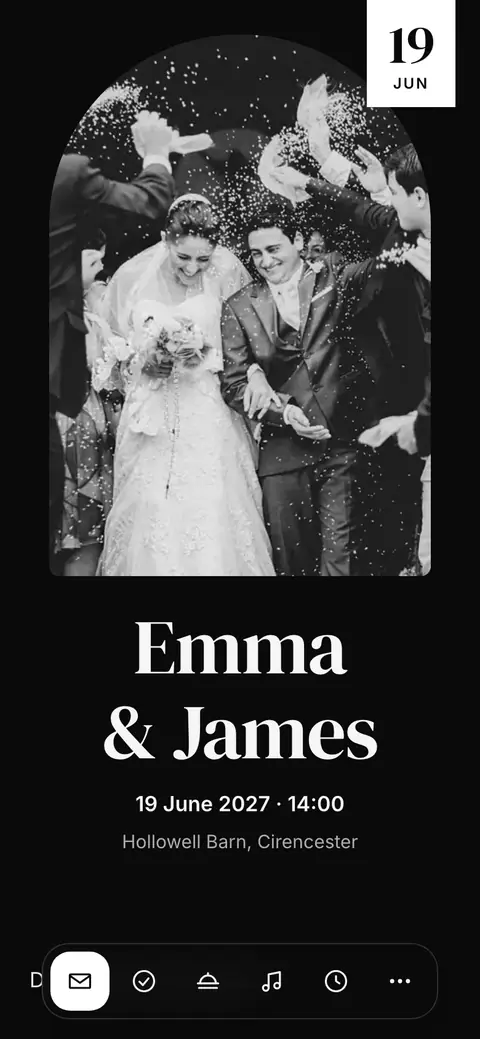
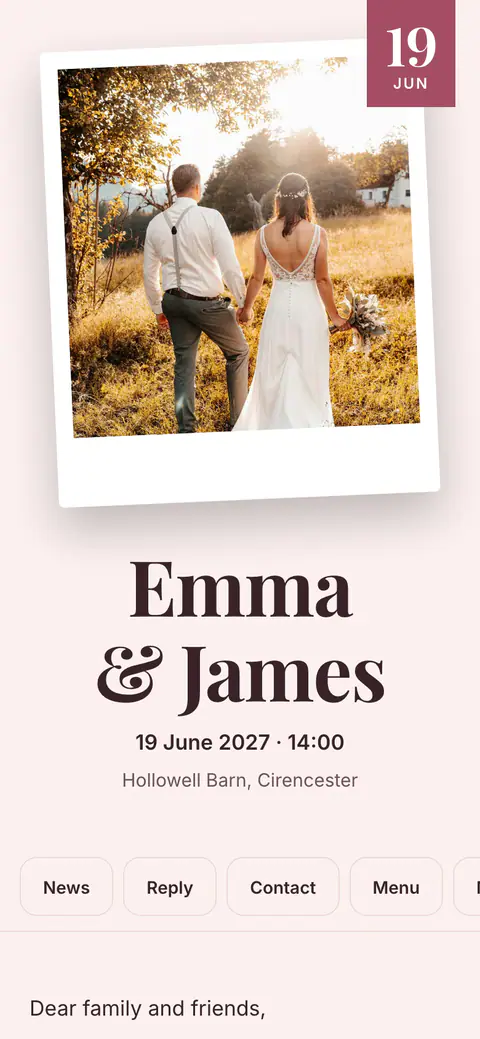
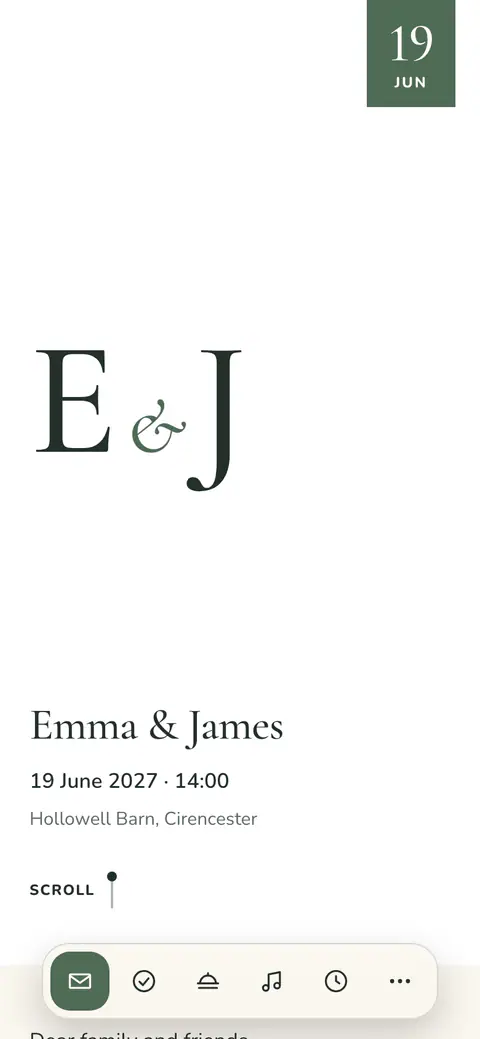
- Full bleed: the photo fills the screen and your names stand on it.
- Split: the photo on one side or on top, your names and the date beside it.
- Framed, Arch and Polaroid: the photo in a frame, under an arch or as a slightly tilted print.
- Band: your names and the date first, then a wide strip of photo.
- No photo: no photo needed. Your names open the invitation in large lettering, in your style’s own colours.
Change the cover
- Open Invitation and choose Cover in the design card.
- Pick a shape. Your invitation in the window shows it at once.
- Press Apply.
- Go to the Invitation tab and tap Cover in the design card.
- Pick a shape. Your invitation at the top shows it at once.
- Tap Apply.
Your own photo or a Vowly photo
- Upload your own photo: use a photo of your own. It is saved as soon as you choose it, and Vowly says Your cover photo has been saved.
- Vowly photos: choose one of Vowly’s photos, free to use.
- While you have your own photo on the cover, it stays there. To use a Vowly photo instead, remove yours first.
Keep your faces in view
A cover has a set shape, different on a phone and on a computer, so part of your photo can be cut off. To choose what always stays in view:
- In the Cover window, choose Adjust framing beside your photo.
- Drag the point onto what must always show, such as your faces. The frames show what a phone and a computer keep.
- Save. The framing is used straight away, in the shape you chose.
In the design editor the same action is called Focus point. If you change the photo, check the framing again.
Date style
In Customise design, choose Date style: Large day and month, Date line, Calendar card, Stamp, Stacked or Ribbon. Show the time shows the time beside the date or leaves it out. Every style writes your event’s date in the guest’s language.
If your event has no date yet, guests do not see one, and the style you chose is used once you add the date.
Frequently asked questions
Why are our faces cut off?
The cover has a set shape, wider on a computer than on a phone. Open Adjust framing, drag the point onto your faces and save. A shape such as Split or Framed can also suit a standing photo better.
Can I have no photo at all?
Yes. Choose No photo: your names open the invitation in large lettering, in your style’s colours.
Was this article helpful?
Related articles
Still need help?
Our support team is here for you.
Chat with us
Ask your question in the chat. A person from our team replies within one business day.
Email us
Write to us from your account’s email address and add a screenshot if you can.
support@vowly.co