Which layout should I choose: Flow, Cards or Pages?
The layout decides how guests move through your invitation. All three use the same details, the same sections and the same reply form. You can switch at any time, and nothing you have written is lost.
The three layouts
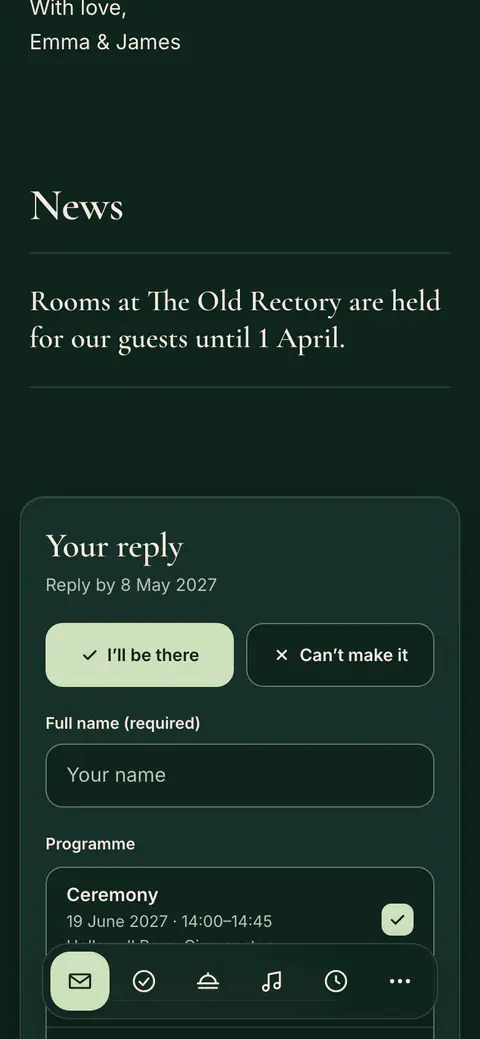
- Flow: everything on one page that guests scroll through. A bar at the bottom of the screen takes them to a section.
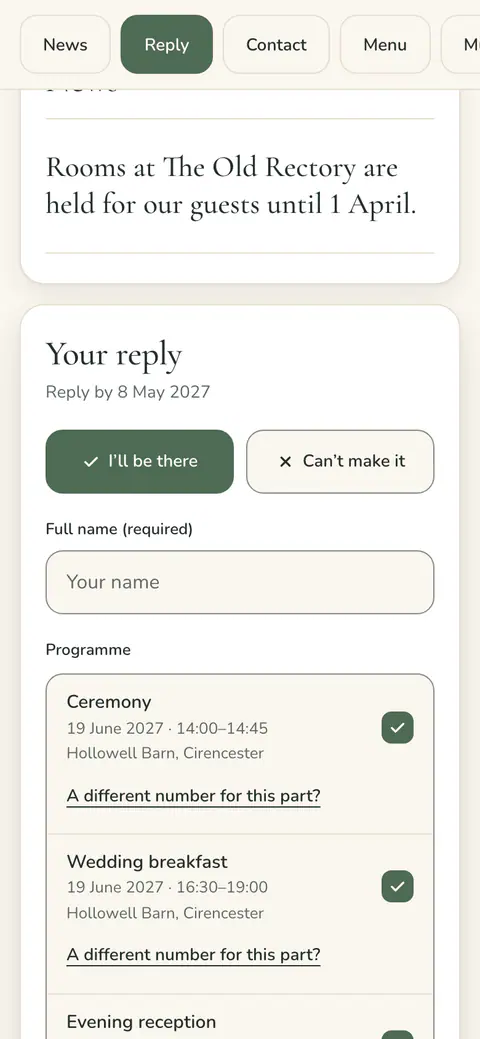
- Cards: the cover first, then a card for each section, always open. A row of section names stays at the top while guests scroll.
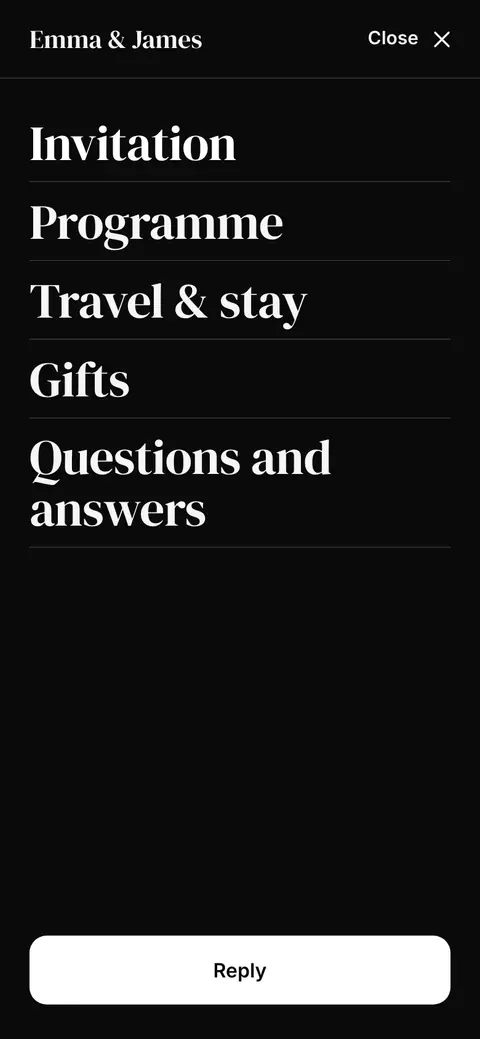
- Pages: a small website with a menu, each section on a page of its own. The first page is the invitation itself, and the reply button stays at the top of every page.
On a computer, Flow and Cards keep a bar of sections at the top with the reply button, and Pages puts its menu across the top. Flow is a good start for most events; Pages suits an invitation with many sections.
Switch the layout
- Open Invitation and choose Layout in the design card.
- Pick Flow, Cards or Pages. Your invitation in the window shows it at once.
- Press Apply.
- Go to the Invitation tab and tap Layout in the design card.
- Pick Flow, Cards or Pages. Your invitation at the top shows it at once.
- Tap Apply.

If your invitation is published, guests see the new layout straight away. The same window also has Gentle motion and Share card after a reply under Extras.
What stays the same
Switching the layout does not change your content, the order of your sections, who sees each section or your reply form. With Pages, the menu uses your sections’ names in each guest’s language.
Was this article helpful?
Related articles
Still need help?
Our support team is here for you.
Chat with us
Ask your question in the chat. A person from our team replies within one business day.
Email us
Write to us from your account’s email address and add a screenshot if you can.
support@vowly.co